Docs Home → Develop Applications → MongoDB Manual
Replication
On this page
A replica set in MongoDB is a group of mongod processes
that maintain the same data set. Replica sets provide redundancy and
high availability, and are the basis for all production
deployments. This section introduces replication in MongoDB as well as
the components and architecture of replica sets. The section also
provides tutorials for common tasks related to replica sets.
You can deploy a replica set in the UI for deployments hosted in MongoDB Atlas.
Redundancy and Data Availability
Replication provides redundancy and increases data availability. With multiple copies of data on different database servers, replication provides a level of fault tolerance against the loss of a single database server.
In some cases, replication can provide increased read capacity as clients can send read operations to different servers. Maintaining copies of data in different data centers can increase data locality and availability for distributed applications. You can also maintain additional copies for dedicated purposes, such as disaster recovery, reporting, or backup.
Replication in MongoDB
A replica set is a group of mongod instances that maintain
the same data set. A replica set contains several data bearing nodes
and optionally one arbiter node. Of the data bearing nodes, one and
only one member is deemed the primary node, while the other nodes are
deemed secondary nodes.
Warning
Each replica set node must belong to one, and only one, replica set. Replica set nodes cannot belong to more than one replica set.
The primary node receives all write
operations. A replica set can have only one primary capable of
confirming writes with { w: "majority" }
write concern; although in some circumstances, another mongod instance
may transiently believe itself to also be primary.
[1] The primary records all changes to its data
sets in its operation log, i.e. oplog. For more information on primary node
operation, see Replica Set Primary.
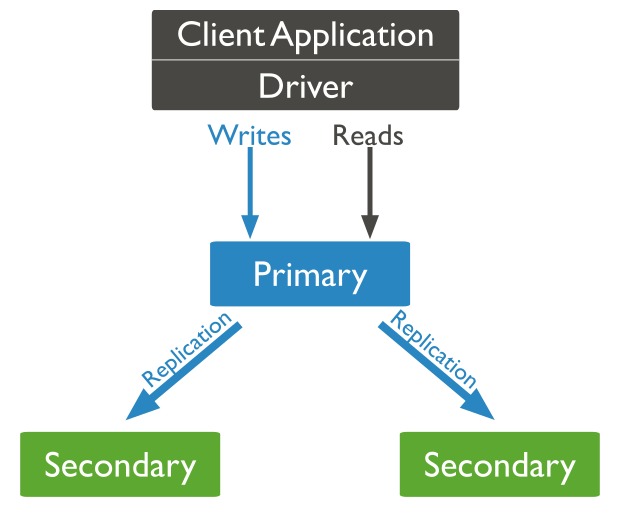
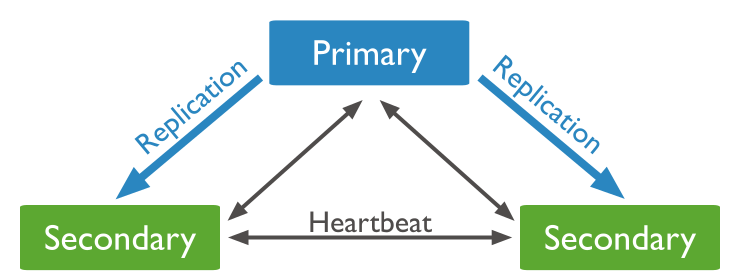
The secondaries replicate the primary's oplog and apply the operations to their data sets such that the secondaries' data sets reflect the primary's data set. If the primary is unavailable, an eligible secondary will hold an election to elect itself the new primary. For more information on secondary members, see Replica Set Secondary Members.
In some circumstances (such as you have a primary and a secondary but
cost constraints prohibit adding another secondary), you may choose to
add a mongod instance to a replica set as an
arbiter. An arbiter participates in
elections but does not hold data (i.e.
does not provide data redundancy). For more information on arbiters,
see Replica Set Arbiter.
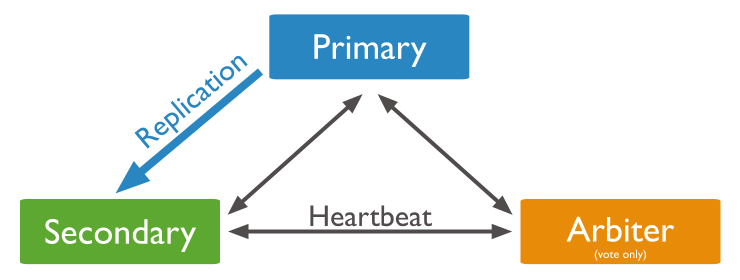
An arbiter will always be an arbiter whereas a primary may step down and become a secondary and a secondary may become the primary during an election.
Asynchronous Replication
Secondaries replicate the primary's oplog and apply the operations to their data sets asynchronously. By having the secondaries' data sets reflect the primary's data set, the replica set can continue to function despite the failure of one or more members.
For more information on replication mechanics, see Replica Set Oplog and Replica Set Data Synchronization.
Slow Operations
Starting in version 4.2, secondary members of a replica set now log oplog entries that take longer than the slow operation threshold to apply. These slow oplog messages:
Are logged for the secondaries in the
diagnostic log.Are logged under the
REPLcomponent with the textapplied op: <oplog entry> took <num>ms.Do not depend on the log levels (either at the system or component level)
Do not depend on the profiling level.
Are affected by
slowOpSampleRate.
The profiler does not capture slow oplog entries.
Replication Lag and Flow Control
Replication lag is a delay between an operation on the primary and the application of that operation from the oplog to the secondary. Some small delay period may be acceptable, but significant problems emerge as replication lag grows, including building cache pressure on the primary.
Starting in MongoDB 4.2, administrators can limit the rate at which
the primary applies its writes with the goal of keeping the majority
committed lag under
a configurable maximum value flowControlTargetLagSeconds.
By default, flow control is enabled.
Note
For flow control to engage, the replica set/sharded cluster must
have: featureCompatibilityVersion (fCV) of
4.2 and read concern majority enabled. That is, enabled flow
control has no effect if fCV is not 4.2 or if read concern
majority is disabled.
With flow control enabled, as the lag grows close to the
flowControlTargetLagSeconds, writes on the primary must obtain
tickets before taking locks to apply writes. By limiting the number of
tickets issued per second, the flow control mechanism attempts to keep
the lag under the target.
For more information, see Check the Replication Lag and Flow Control.
Automatic Failover
When a primary does not communicate with the other members of the set
for more than the configured electionTimeoutMillis
period (10 seconds by default), an eligible secondary calls for an
election to nominate itself as the new primary. The cluster attempts to
complete the election of a new primary and resume normal operations.
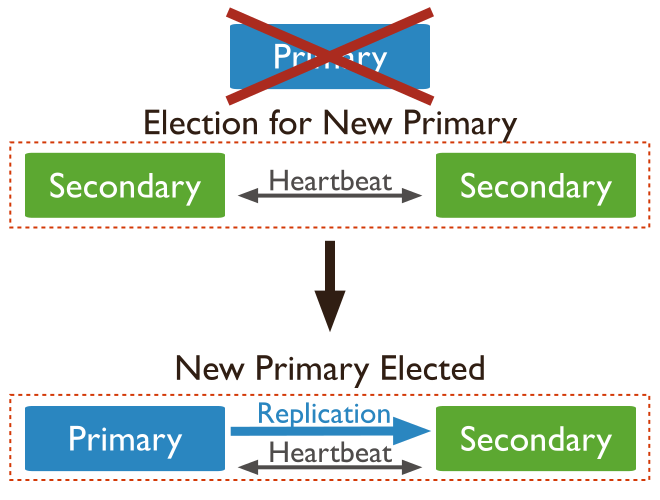
The replica set cannot process write operations until the election completes successfully. The replica set can continue to serve read queries if such queries are configured to run on secondaries while the primary is offline.
The median time before a cluster elects a new primary should not
typically exceed 12 seconds, assuming default replica
configuration settings. This includes time required to
mark the primary as unavailable and
call and complete an election.
You can tune this time period by modifying the
settings.electionTimeoutMillis replication configuration
option. Factors such as network latency may extend the time required
for replica set elections to complete, which in turn affects the amount
of time your cluster may operate without a primary. These factors are
dependent on your particular cluster architecture.
Lowering the electionTimeoutMillis
replication configuration option from the default 10000 (10 seconds)
can result in faster detection of primary failure. However,
the cluster may call elections more frequently due to factors such as
temporary network latency even if the primary is otherwise healthy.
This can result in increased rollbacks for
w : 1 write operations.
Your application connection logic should include tolerance for automatic failovers and the subsequent elections. MongoDB drivers can detect the loss of the primary and automatically retry certain write operations a single time, providing additional built-in handling of automatic failovers and elections:
Compatible drivers enable retryable writes by default
MongoDB provides mirrored reads to pre-warm electable secondary members' cache with the most recently accessed data. Pre-warming the cache of a secondary can help restore performance more quickly after an election.
To learn more about MongoDB’s failover process, see:
Read Operations
Read Preference
By default, clients read from the primary [1]; however, clients can specify a read preference to send read operations to secondaries.
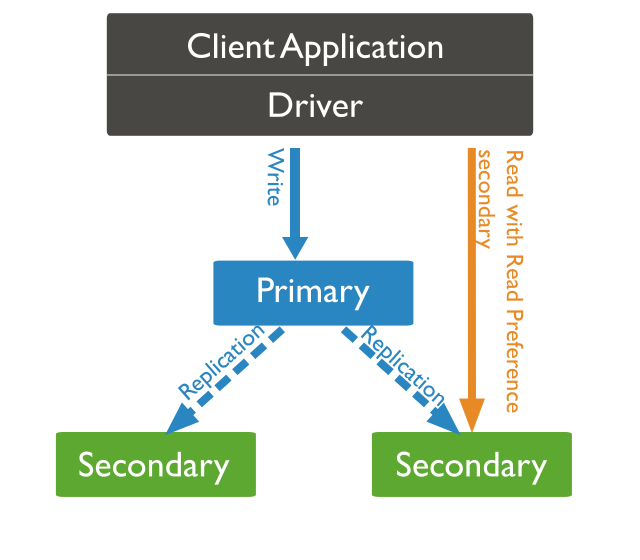
Asynchronous replication to secondaries means that reads from secondaries may return data that does not reflect the state of the data on the primary.
Distributed transactions that contain
read operations must use read preference primary. All
operations in a given transaction must route to the same member.
For information on reading from replica sets, see Read Preference.
Data Visibility
Depending on the read concern, clients can see the results of writes before the writes are durable:
Regardless of a write's write concern, other clients using
"local"or"available"read concern can see the result of a write operation before the write operation is acknowledged to the issuing client.Clients using
"local"or"available"read concern can read data which may be subsequently rolled back during replica set failovers.
For operations in a multi-document transaction, when a transaction commits, all data changes made in the transaction are saved and visible outside the transaction. That is, a transaction will not commit some of its changes while rolling back others.
Until a transaction commits, the data changes made in the transaction are not visible outside the transaction.
However, when a transaction writes to multiple shards, not all
outside read operations need to wait for the result of the committed
transaction to be visible across the shards. For example, if a
transaction is committed and write 1 is visible on shard A but write
2 is not yet visible on shard B, an outside read at read concern
"local" can read the results of write 1 without
seeing write 2.
For more information on read isolations, consistency and recency for MongoDB, see Read Isolation, Consistency, and Recency.
Mirrored Reads
Mirrored reads reduce the impact of primary elections following an outage or planned maintenance. After a failover in a replica set, the secondary that takes over as the new primary updates its cache as new queries come in. While the cache is warming up performance can be impacted.
Mirrored reads pre-warm the caches of electable
secondary replica set members. To pre-warm the caches of electable secondaries,
the primary mirrors a sample of the supported operations it receives to electable
secondaries.
The size of the subset of electable
secondary replica set members that receive mirrored reads can be
configured with the mirrorReads
parameter. See Enable/Disable Support for Mirrored Reads for further details.
Note
Mirrored reads do not affect the primary's response to the client. The reads that the primary mirrors to secondaries are "fire-and-forget" operations. The primary doesn't await responses.
Supported Operations
Mirrored reads support the following operations:
findAndModify(Specifically, the filter is sent as a mirrored read)update(Specifically, the filter is sent as a mirrored read)
Enable/Disable Support for Mirrored Reads
Mirrored reads are enabled by default and use a default
sampling rate of 0.01. To disable
mirrored reads, set the mirrorReads parameter to {
samplingRate: 0.0 }:
db.adminCommand( { setParameter: 1, mirrorReads: { samplingRate: 0.0 } } )
With a sampling rate greater than 0.0, the primary mirrors
supported reads to a subset
of electable secondaries. With a sampling rate
of 0.01, the primary mirrors one percent of the supported reads it receives
to a selection of electable secondaries.
For example, consider a replica set that consists of one primary and two
electable secondaries. If the primary receives 1000 operations that can be
mirrored and the sampling rate is 0.01, the primary mirrors about 10
supported reads to electable secondaries. Each electable secondary receives only
a fraction of the 10 reads. The primary sends each mirrored read to a randomly
chosen, non-empty selection of electable secondaries.
Change the Sampling Rate for Mirrored Reads
To change the sampling rate for mirrored reads, set the
mirrorReads parameter to a number between 0.0 and
1.0:
A sampling rate of
0.0disables mirrored reads.A sampling rate of a number between
0.0and1.0results in the primary forwarding a random sample of the supported reads at the specified sample rate to electable secondaries.A sampling rate of
1.0results in the primary forwarding all supported reads to electable secondaries.
For details, see mirrorReads.
Mirrored Reads Metrics
The serverStatus command and the db.serverStatus()
shell method return mirroredReads metrics if you specify the
field in the operation:
db.serverStatus( { mirroredReads: 1 } )
Transactions
Starting in MongoDB 4.0, multi-document transactions are available for replica sets.
Distributed transactions that contain
read operations must use read preference primary. All
operations in a given transaction must route to the same member.
Until a transaction commits, the data changes made in the transaction are not visible outside the transaction.
However, when a transaction writes to multiple shards, not all
outside read operations need to wait for the result of the committed
transaction to be visible across the shards. For example, if a
transaction is committed and write 1 is visible on shard A but write
2 is not yet visible on shard B, an outside read at read concern
"local" can read the results of write 1 without
seeing write 2.
Change Streams
Starting in MongoDB 3.6, change streams are available for replica sets and sharded clusters. Change streams allow applications to access real-time data changes without the complexity and risk of tailing the oplog. Applications can use change streams to subscribe to all data changes on a collection or collections.
Additional Features
Replica sets provide a number of options to support application
needs. For example, you may deploy a replica set with members in
multiple data centers, or
control the outcome of elections by adjusting the
members[n].priority of some
members. Replica sets also support dedicated members for reporting,
disaster recovery, or backup functions.
See Priority 0 Replica Set Members, Hidden Replica Set Members and Delayed Replica Set Members for more information.
| [1] | (1, 2) In some circumstances, two nodes in a replica set
may transiently believe that they are the primary, but at most, one
of them will be able to complete writes with { w:
"majority" } write concern. The node that can complete
{ w: "majority" } writes is the current
primary, and the other node is a former primary that has not yet
recognized its demotion, typically due to a network partition.
When this occurs, clients that connect to the former primary may
observe stale data despite having requested read preference
primary, and new writes to the former primary will
eventually roll back. |